
Create your chatbot, then complete guided quick onboarding to scan your website, review your business, choose goals, approve content, and configure alerts.
This guide covers bot creation. Continue with the six-step Quick Start guide once the setup wizard opens.
Step 1 — Sign in to your dashboard
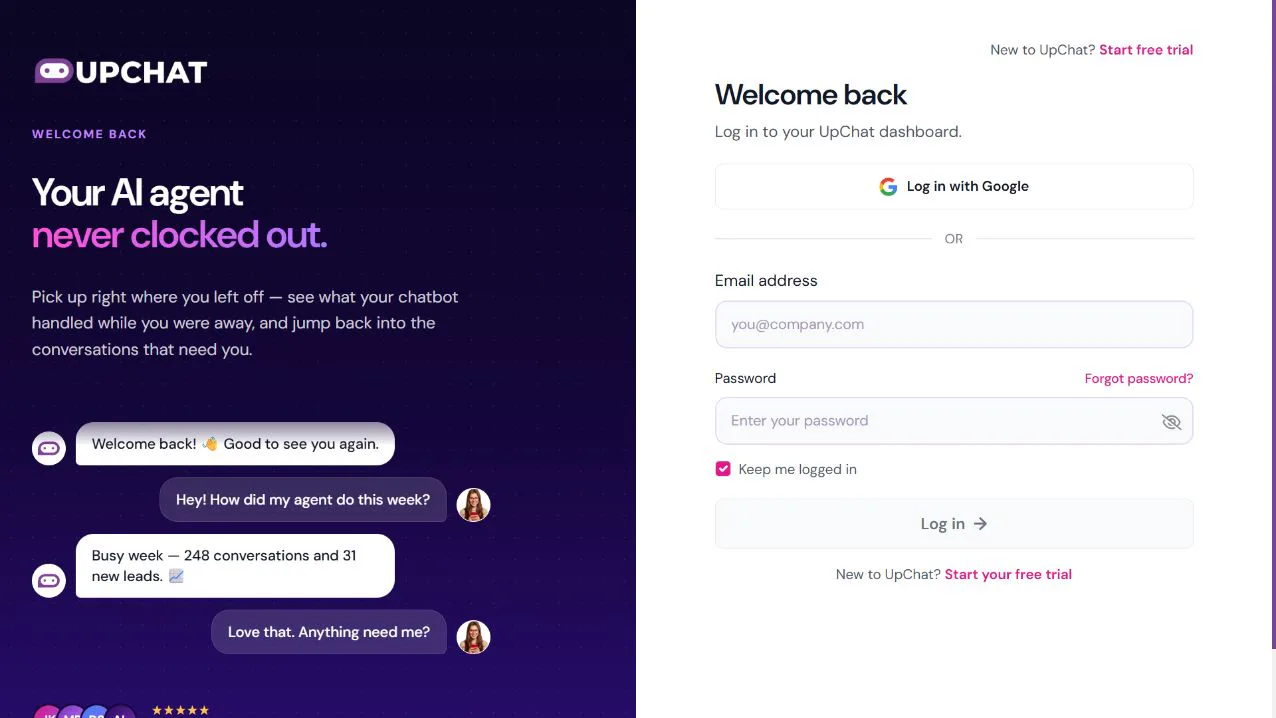
Go to app.upchat.io and sign in with Google or your email address and password. If you are new to UpChat, choose Start your free trial first.
Forgot your password? See How do I Change my Password?
Step 2 — Start a new chatbot
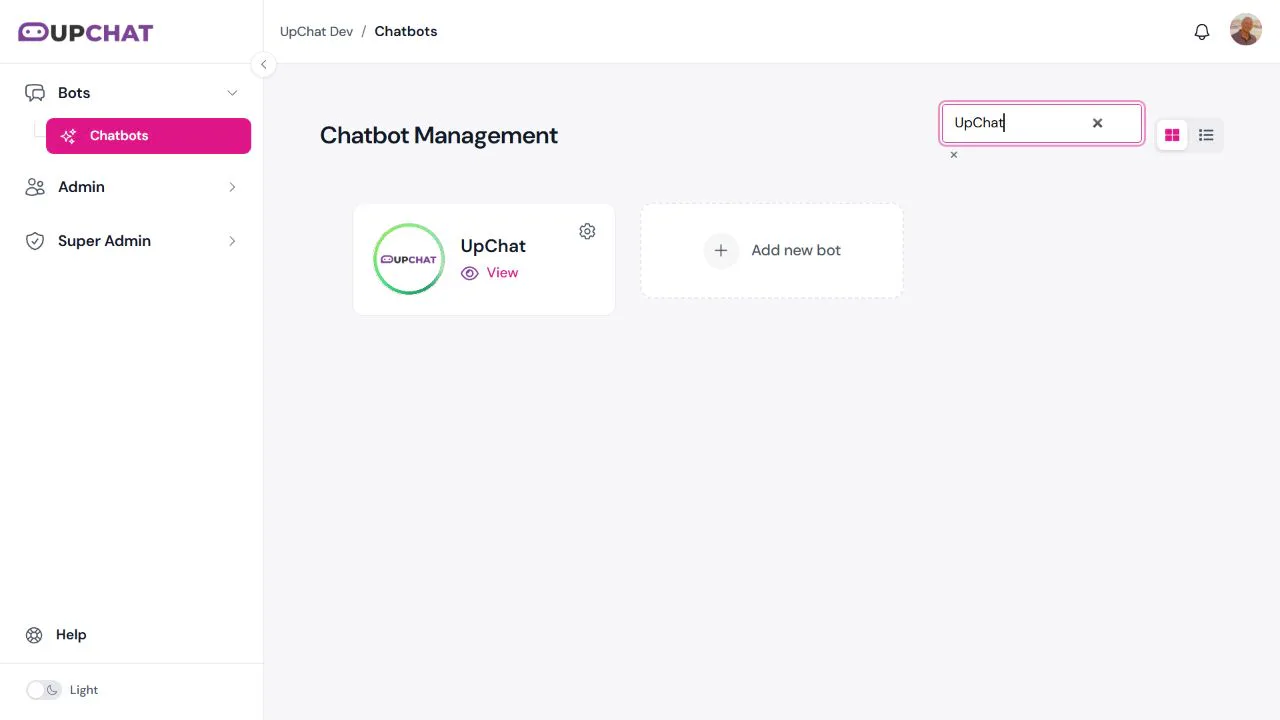
Open Bots → Chatbots. If your account already has bots, select Add new bot to start another.
If you are already on the Create Chatbot form, continue with your business details below.
Step 3 — Choose your plan
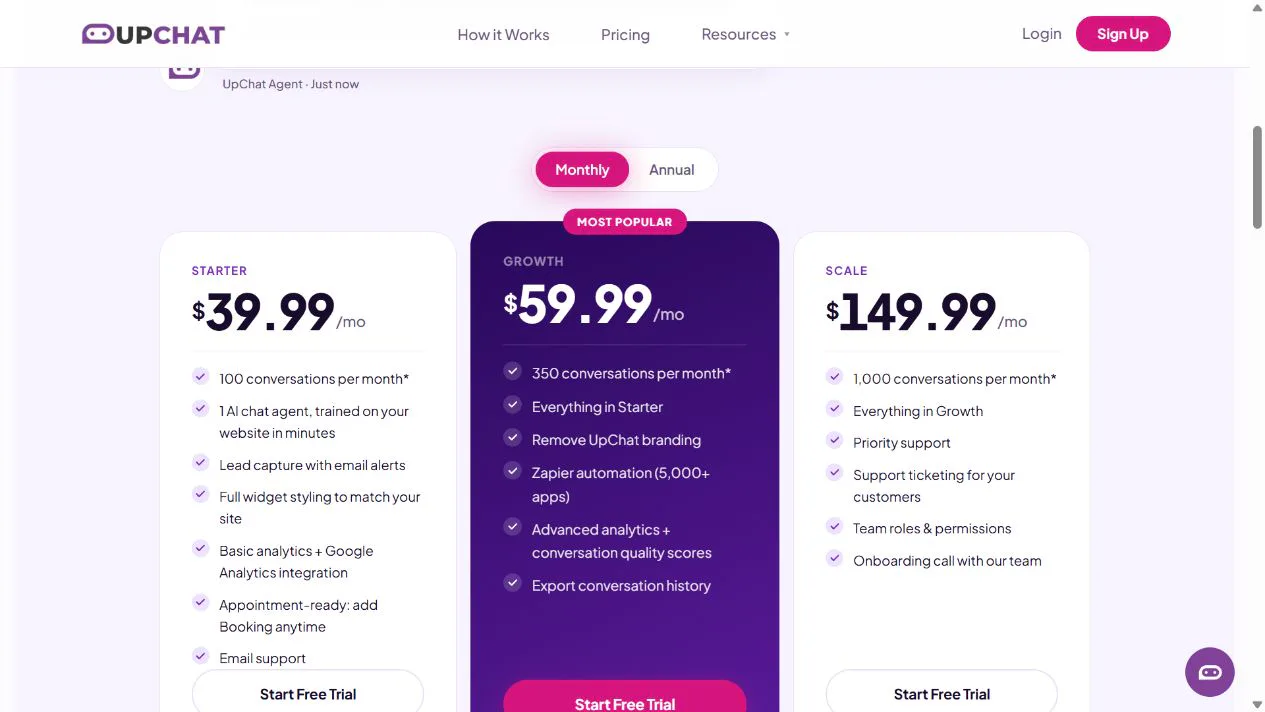
If you are asked to choose a subscription, complete that step before continuing. If your subscription is already active, you will see the Create Chatbot form.
Compare options on our Pricing page or contact our team for help choosing.
Step 4 — Name and configure your bot
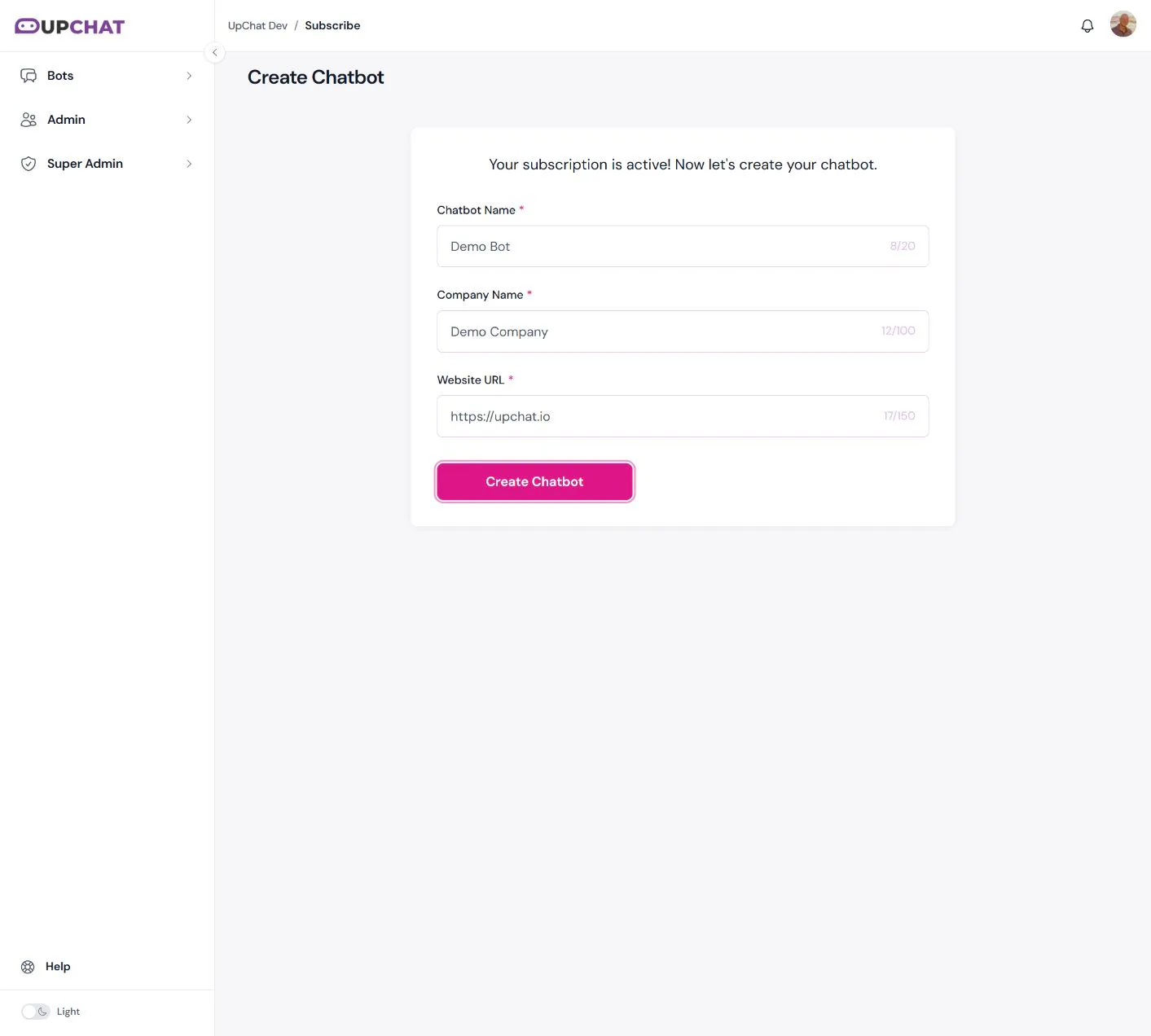
Fill in all three required fields:
- Chatbot Name: A short, recognizable name, such as Website Assistant (up to 20 characters).
- Company Name: Your business or organization name (up to 100 characters).
- Website URL: Your website address, including https:// (up to 150 characters).
Select Create Chatbot to submit the form.
Step 5 — Start quick onboarding
After creating your bot, the Let’s Set Up Your Chatbot wizard opens over your dashboard. It follows six stages: Scan → Business → Goals → Content → Alerts → Launch.
Confirm your website and click Scan. Our demo uses upchat.io. If you do not have a website, choose Skip and enter info manually. Use Save & Exit to pause and the dashboard’s Setup % button to resume unfinished setup.
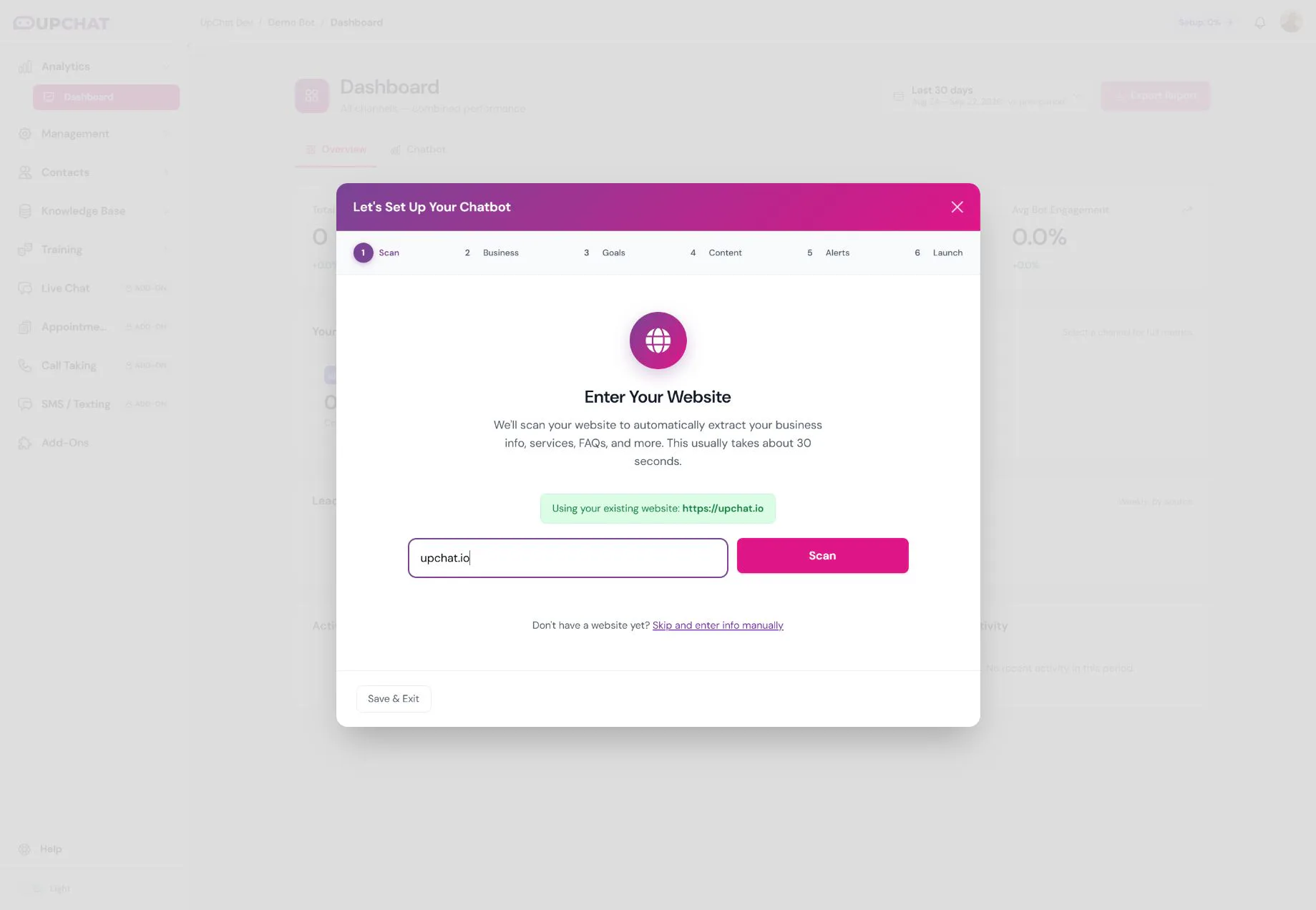
Follow Smart Setup for a screenshot of every onboarding stage. Review extracted content before accepting it. After Launch Chatbot, refine your widget, test your answers, and install your production snippet.
What’s next?
Continue with the Quick Start onboarding checklist or the detailed Smart Setup walkthrough.
Creating or launching a bot does not install it on your website. After onboarding, test the bot and follow Installing Your Widget.
Need a hand?
Can’t find what you need? Our team is happy to help.