
Before making your bot live on your website, you can demo it directly inside the UpChat dashboard. This allows you to test how your bot responds to customer questions, confirm the accuracy of your knowledge base, and ensure everything works smoothly.
Why Demo Your Bot?
Testing your bot in demo mode helps you:
- Verify that the bot is pulling the correct information from your knowledge base.
- Experience conversations the way your customers will.
- Identify and fix gaps before going live.
- Build confidence that your chatbot is ready for real users.
Steps to Demo Your Bot
- Log in to your UpChat dashboard.
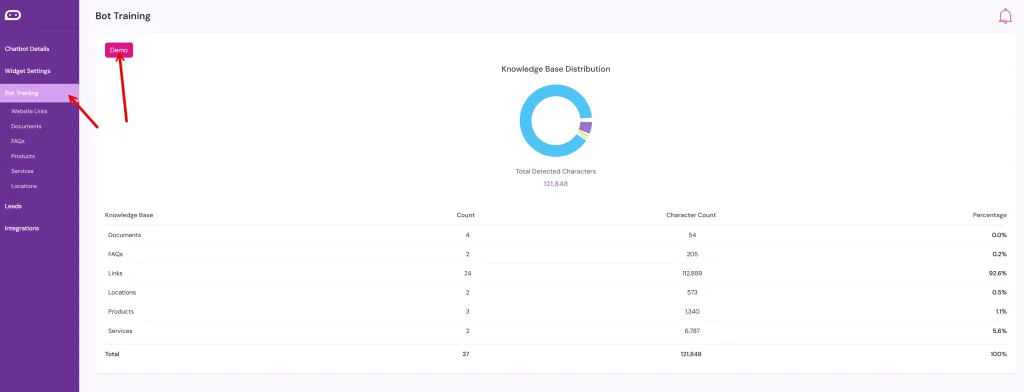
- From the left-hand menu, click on Bot Training.
- Review your knowledge base (Documents, FAQs, Products, Services, Locations, Links).
- At the top of the page, click the Demo button (highlighted in pink).
- A chat window will open where you can interact with your bot just like a website visitor would.
- Ask product or service questions.
- Test FAQs, location details, or links.
- Confirm that responses sound natural and accurate.
- If something isn’t working as expected, return to your training data and make adjustments.
Tips for a Successful Demo
- Try both short questions (“What are your hours?”) and detailed queries (“Do you offer vinyl fencing installation in Orlando?”).
- Test edge cases, such as misspellings or vague requests.
- Review responses for accuracy and completeness—make updates to your knowledge base where needed.
- Involve team members to role-play as customers and see how the bot handles different scenarios.
Once you’re satisfied with the results, you can move forward with deploying the bot to your website with confidence.