
Paste the UpChat snippet into Webflow’s site-wide Footer code, then publish. A saved change is not live until you publish.
Where this fits: These steps are for Webflow Custom code. Installing on WordPress instead? Follow Install UpChat on WordPress (Standard).
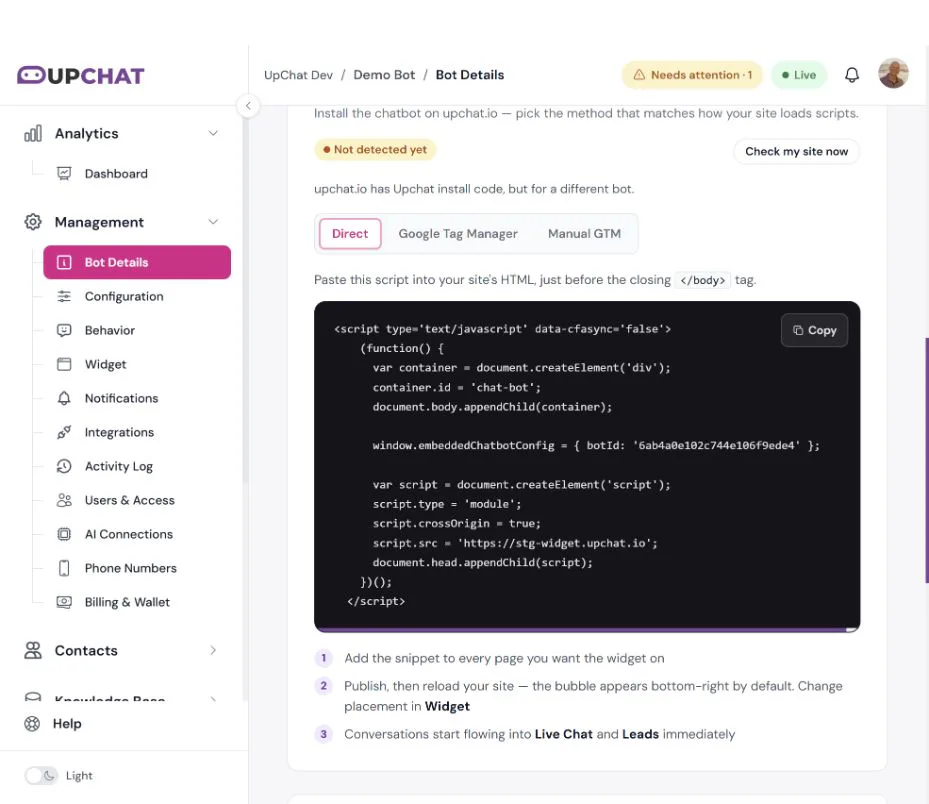
Use the code copied from your own production bot. The screenshot uses Demo Bot on staging; its bot ID and staging widget address are examples, not code to copy into a customer website.
Steps to copy your installation code
- Sign in to your production UpChat account and open the bot you want on the site.
- Go to Management → Bot Details.
- Scroll to Embed code and select Direct.
- Select Copy.
Steps to add the snippet in Webflow
- Open the project’s Site settings → Custom code.
- Paste the complete UpChat snippet into Footer code.
- Select Save changes.
- Publish the site to the domain you want to use.
- Test the published pages.
Use site-level Footer code so the widget loads on every page. Page-level code only runs on that one page. Webflow places Footer code before the closing </body> tag. A preview may not run the snippet, so publish before you test. If Custom code is unavailable, check the site and workspace plan. See Webflow’s custom-code guide and the Page & site level code video.
Verify the installation
Open the published site in a normal browser tab, open the widget, and send a test question. Check at least the home page, a second page, and a phone-sized view.
Back in Bot Details, select Check my site now. If UpChat reports that the website has code for a different bot, compare the installed bot ID with the code you just copied.
For a missing widget, see Troubleshooting: Your Widget Is Not Showing. Publish your site changes before relying on a preview result, and avoid installing the snippet twice through different methods.