
Follow these steps to connect your Upchat.io account with Zapier via a webhook, enabling you to automate workflows and send captured leads or events to your favorite apps.
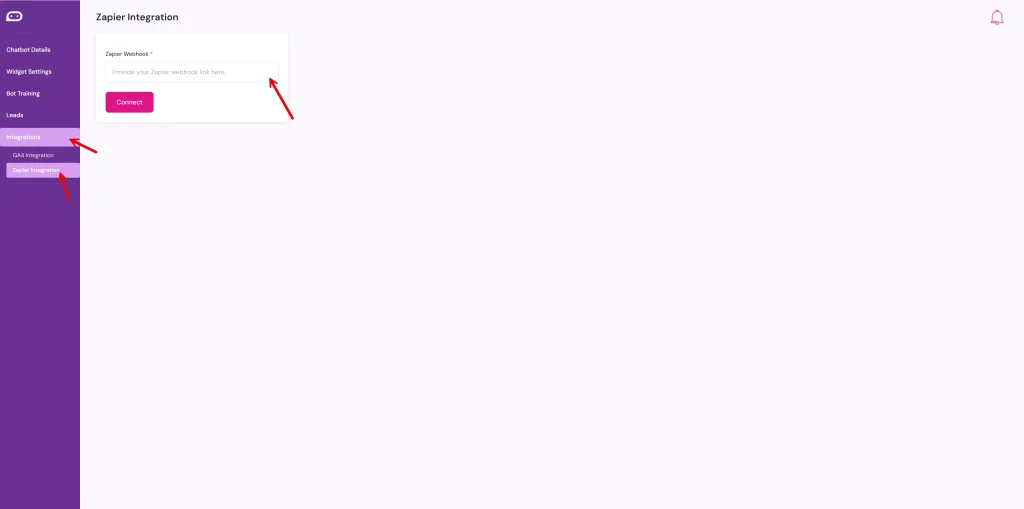
Step 1: Log in to Your Upchat.io Dashboard
- Go to Upchat.io and sign in with your account credentials.
Step 2: Access the Integrations Menu
- On the left sidebar, click Integrations.
- Select Zapier Integration from the sub-menu.
Step 3: Get Your Zapier Webhook URL
- In a separate browser tab, log in to your Zapier account.
- Create a New Zap.
- For the Trigger, search for Webhooks by Zapier and select Catch Hook.
- Zapier will provide a Webhook URL — copy it.
Step 4: Paste Your Webhook in Upchat.io
- Back in your Upchat.io dashboard, find the Zapier Webhook field.
- Paste the webhook URL you copied from Zapier into the field.
- Click the Connect button.
Step 5: Test the Connection
- Trigger an event in your chatbot (e.g., submit a lead form).
- Check your Zapier task history to ensure the data is being received.
- Continue building your Zap by adding actions such as sending leads to a CRM, Google Sheets, or email.
If you change your Zapier webhook URL in the future, make sure to update it in Upchat.io to avoid breaking your automation.