
Track AI Chat Engagements with Google Analytics 4
UpChat.io integrates seamlessly with Google Analytics 4, giving businesses deeper insight into how website visitors engage with their AI-powered chat widget. This integration lets you track key interactions—like chat starts, lead submissions, and engagement events—directly within your GA4 dashboard. This empowers your team to measure the true ROI of AI chat, understand user behavior, and optimize your website experience for more conversions. Whether running ads, improving UX, or reporting performance, this integration helps connect chat data to your broader digital strategy.
Set up GA4 Integration – UpChat.io Integrations
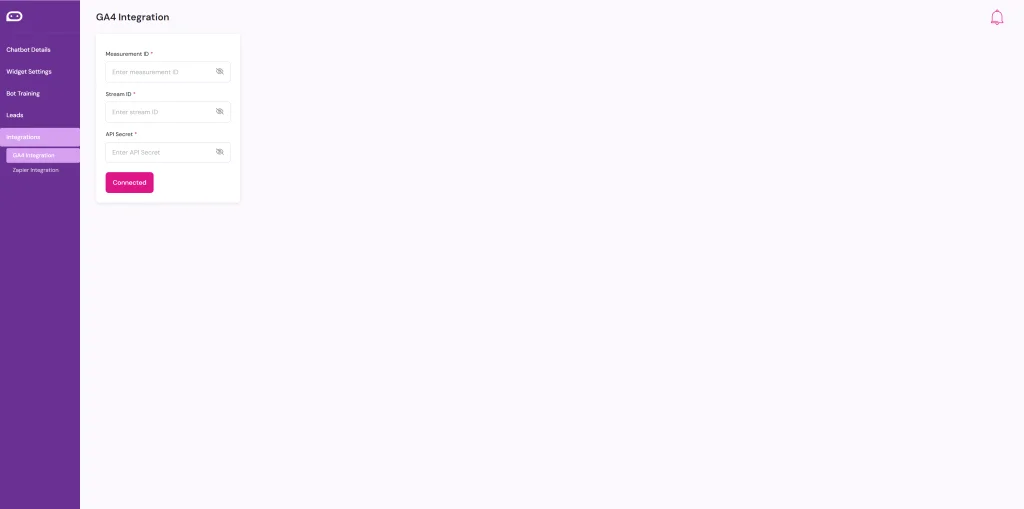
Connect UpChat.io to your GA4 account to start tracking chatbot activity in real-time. Enter your Measurement ID, Stream ID, and API Secret to link your data. Once connected, you’ll gain visibility into chat engagements, lead events, and user behavior directly in your GA4 dashboard.
How to Find Your GA4 Credentials for UpChat.io Integration
To connect your Google Analytics 4 account with UpChat.io, you’ll need the following three items:
- Measurement ID
- Stream ID
- API Secret
Here’s how to get them:
✅ Step 1: Open Your GA4 Admin Panel
- Log in to your Google Analytics account.
- Select the appropriate property (website) from the dropdown.
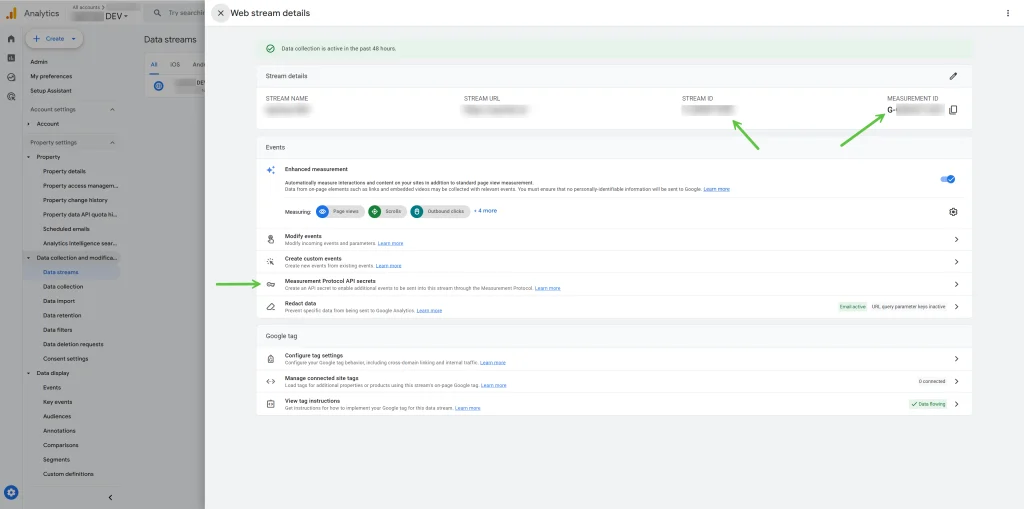
- In the left-hand menu, go to Admin \> Data Streams under Property Settings.
✅ Step 2: Select the Web Data Stream
- Click on the relevant Web data stream (not iOS or Android).
- You will now see the Web Stream Details panel.
✅ Step 3: Copy the Stream ID and Measurement ID
- Stream ID is located near the top of the panel (see the green arrow in the image).
- Measurement ID is also near the top and typically starts with `G-`.
✅ Step 4: Create and Copy an API Secret
- Scroll down to the Events section.
- Click on Measurement Protocol API secrets.
- Click Create to generate a new API secret.
- Give it a name like “UpChat Integration” and save.
- Copy the generated API Secret.
✅ Step 5: Paste into UpChat.io
Return to your UpChat.io dashboard under Integrations > GA4 Integration, and:
- Paste the Measurement ID
- Paste the Stream ID
- Paste the API Secret
Then click Connect to finalize the integration.
Testing Your GA4 Integration
Once your Measurement ID, Stream ID, and API Secret are connected, UpChat.io will send chatbot event data to Google Analytics 4. Keep in mind that events may take up to 24–48 hoursto fully appear in your standard GA4 reports. However, you can use the Realtime tab in GA4 to verify event activity within minutes of interaction. For best results, use an incognito tab to trigger a chatbot event (like starting a conversation) and monitor GA4 > Reports > Realtime to confirm data is flowing. This ensures your setup is working before diving into long-term analytics.
Events will generally show based on your pills (Example: UpChat\Sales, UpChat\Customer Service, UpChat\Other), with UpChat\Lead being a successful submission.