
Start by checking the published page and the bot’s installation code. Make one change at a time so you can tell which fix worked.
Step 1 — Check the page you are visiting
Open the published website in a separate tab. Confirm the domain and page URL match where you installed the code. A theme preview, unpublished page, password gate, or alternate domain may load different code from the public website.
If the site requires a password, sign in normally to test the protected page. Do not remove the site’s protection just to make an automated installation check pass.
Step 2 — Check the right bot and snippet
- Open Management → Bot Details → Embed code in the intended bot.
- Compare the installed
botIdwith the code for that bot. - Select Check my site now and read the result.
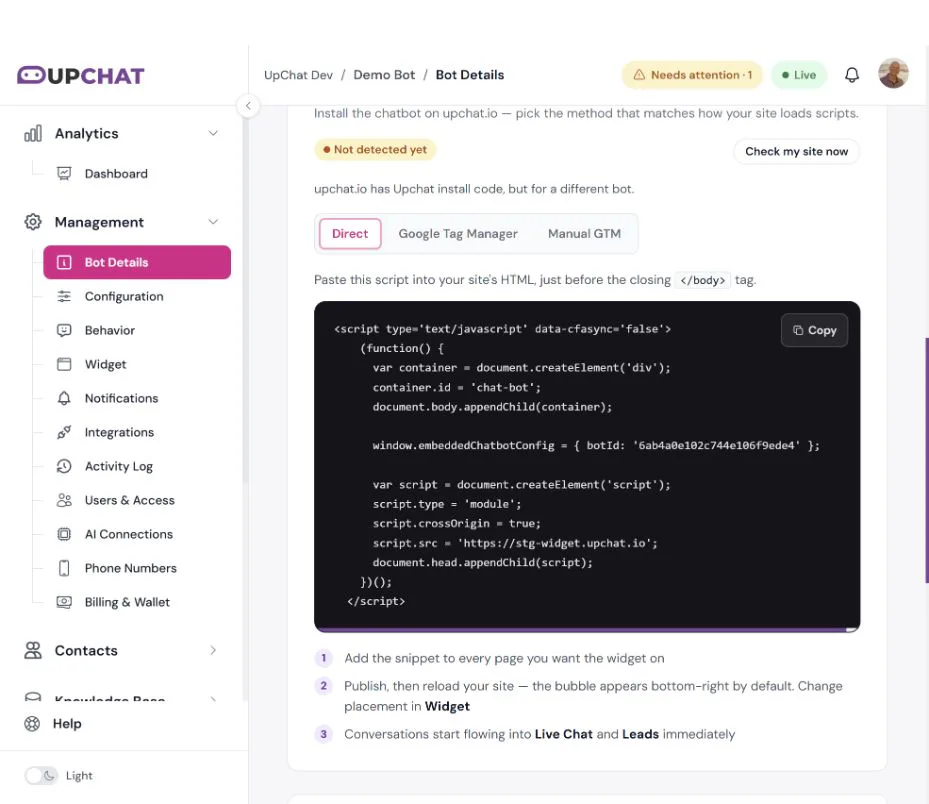
The staging example reports code for a different bot. That means finding any UpChat snippet is not enough: it needs to belong to the bot you intend to display.
For a direct install, keep the complete snippet before the closing </body> tag on every intended page. For GTM, check the container, firing trigger, and published version. Use a production snippet on the production site.
Step 3 — Rule out caching and blockers
- Publish the latest website or theme changes.
- Hard-refresh the page and test a private window.
- Clear the site or CDN cache if you manage it.
- Test with browser extensions disabled for that site, especially ad or script blockers.
- Check whether a consent manager delays the script until the required choice is made. Preserve your site’s consent requirements.
- Ask your developer to inspect script errors or content-security-policy blocks if the widget still does not load.
If a performance plugin delays scripts
WP Rocket, LiteSpeed Cache, Flying Scripts, Perfmatters, NitroPack, and Cloudflare Rocket Loader can keep the widget hidden until someone clicks, or they can rewrite the install snippet. In the plugin’s delay-JavaScript exclusions, add:
widget.upchat.ioembeddedChatbotConfig
Clear that plugin’s cache, then hard-refresh. Leave the UpChat snippet intact. Do not minify, combine, or delay it.
Step 4 — Check mobile behavior
Open Training → Demo → Mobile view to inspect the widget layout.
Then test the published website on a real phone. Look for overlap with cookie notices, sticky buttons, or navigation bars. Show welcome bubble on mobile controls the greeting bubble; hiding that bubble does not necessarily disable the chat launcher.
Step 5 — Contact support with a reproducible example
Include the bot name, exact page URL, install method, browser and device, whether login is required, the install-check result, and a screenshot. Say whether the widget appears in Demo but not on the website. Do not send website passwords or secret credentials in the ticket.