
Adding a video to your Upchat.io widget is a great way to create a personal, engaging first impression for your visitors. Follow the steps below to set it up.
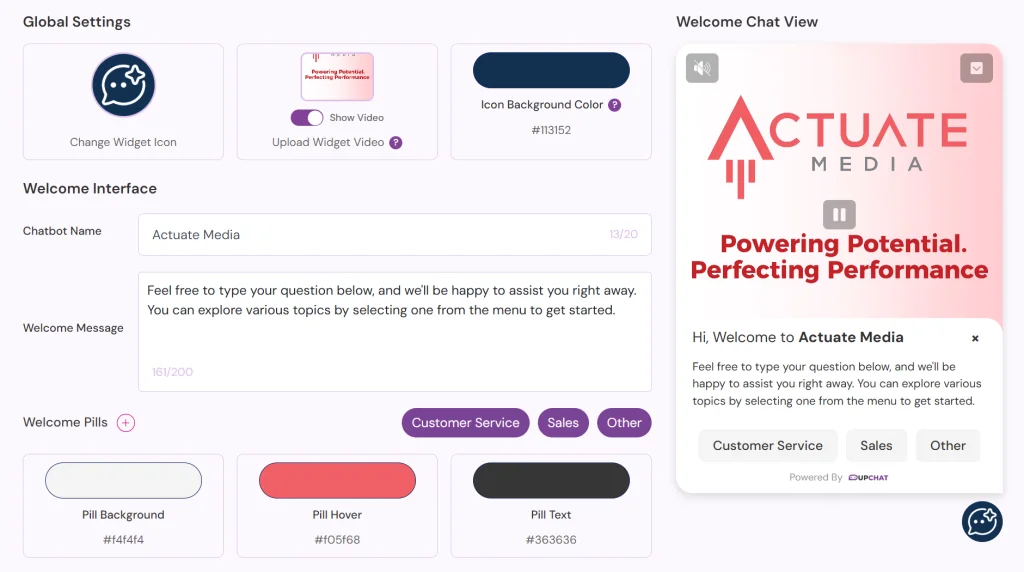
Step 1: Access the Widget Settings
- Log in to your Upchat.io dashboard.
- In the left-hand menu, click Widget Settings.
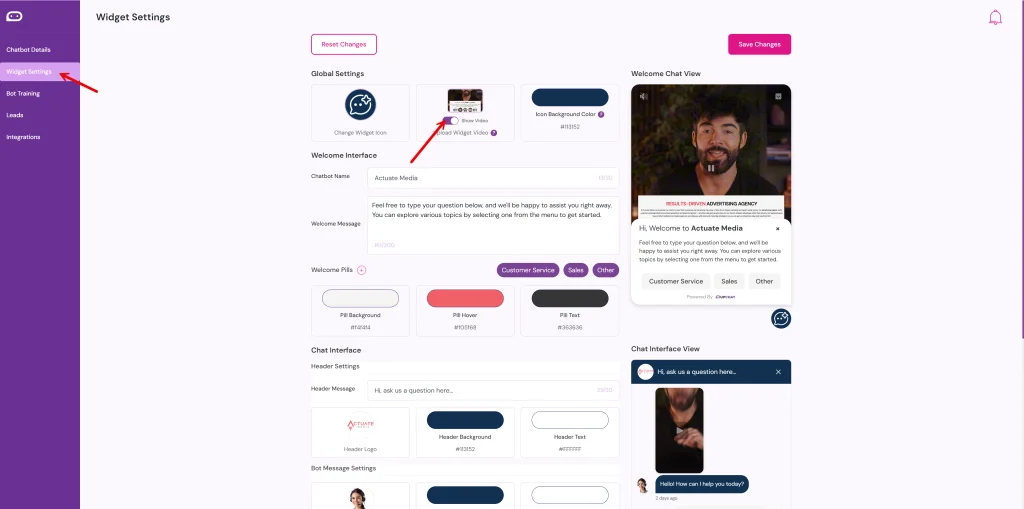
Step 2: Upload Your Widget Video
- Under Global Settings, find the Upload Widget Video section.
- Click Upload Widget Video.
- Select your video file from your computer.
Video Requirements
- Format: MP4
- Max File Size: 20 MB
- Resolution: 1080p (recommended for clarity)
- Design Tip: Keep important visuals and text in the upper portion of the video — the lower portion will be covered by chat text and buttons.
Step 3: Enable the Video Display
- Toggle the Show Video switch to ON.
- The video will now play in the Welcome Chat View preview on the right side of your screen.
Step 4: Save Changes
- Click Save Changes in the top-right corner.
- Your video will now be live in the widget on your website.
Recommendations for Best Results
- Keep it short: 10–20 seconds works best to hold attention.
- Be personable: Greet visitors and invite them to start a conversation.
- Use captions: Many users browse with sound off; captions help convey your message.
- Test load speed: Large videos may affect widget loading; optimize your MP4 for web.
- Brand consistency: Match your video’s tone, colors, and style with your brand.